
Edit
Edit content
For editors: save and publish, changes that other editors see, discard, two saves at the same time, media, places on a map, translations, and how to undo a change.
7 min readThis guide is for the people who write and change the content of a website in Mica. You need no technical knowledge. "Help for editors" in the menu of Mica opens this page.
Save and Publish
Mica has two steps.
- Save: Mica saves your changes by itself, about one second after you stop typing, and when you leave a field. The page shows "Saving…", then "Saved · not published". The website does not change yet.
- Publish sends your saved changes to the website. The website is built again, which usually takes a few minutes.
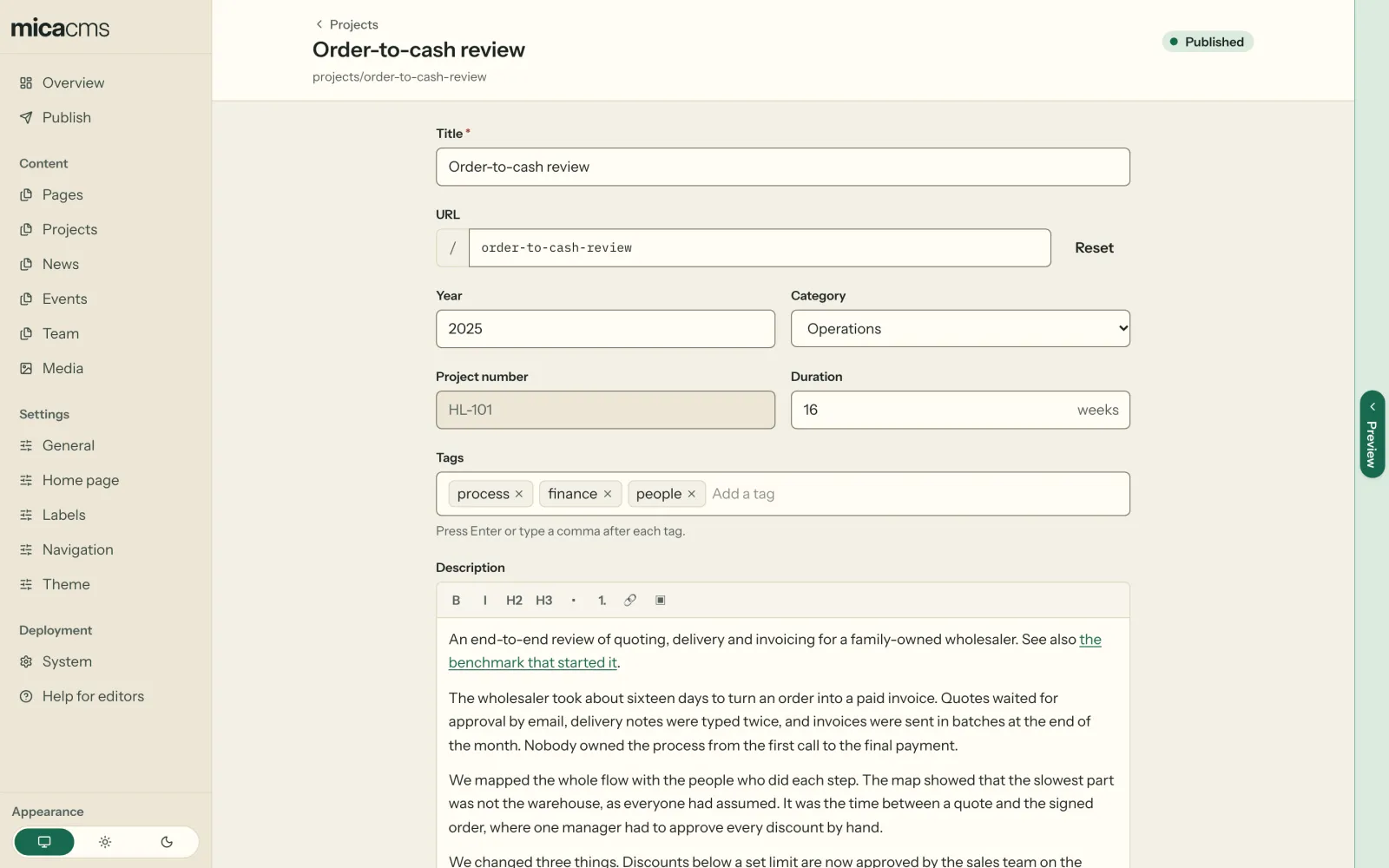
A saved change is safe: you can close the browser and come back tomorrow.
Two changes wait for a button:
- A new entry: write its title, then select Create. After that, Mica saves the entry by itself.
- A new ID of an entry: select Change ID. The note above the form names the old and the new URL of the page. Mica can then also change the links in other entries to the new ID. Keep the old ID undoes the change. Your other changes save as usual.
The ID field shows the page's URL under it, such as "URL: /news/hello". The collection list and the pickers of relations show the URL too. You change only the ID. The other parts of the URL come from the website, and some from other fields of the entry, such as a category: they change when you change that field.
When Mica cannot save, the page shows "Not saved". When a field has a problem, the field shows it: correct the value, and Mica saves again. For other problems, select Try again.
A field with a red star (*) is required. Mica saves the entry without it, but you cannot publish until it has a value. A grey field is read-only: you can read it, but not change it.
Other editors see your saved changes
All editors of a website work on the same saved changes. A colleague sees your saved change on the Publish page, and can publish it. Because Mica saves by itself, this includes changes that you have not finished. Tell your team before you publish changes that are not yours.
See your change on the website
When your developer has set it up, an entry shows Open on website at the top. It opens the page as it is on the website now. After Publish, the page shows a link to each page that you published. The website needs a few minutes to show the change. A new entry gets the link after its first Publish.
When your developer has set up the live preview, the page is beside the form, with your saved changes in it, before Publish. A click on a text in the page opens its field. See Preview changes.
The top of the menu shows the name of your website. A click on it opens the Overview, and a click on the address below it opens the website. Below that, a status says how the preview is: Preview live opens the preview in a new tab, and Preview starting means that it shows in a moment. With Preview stopped or Preview off, tell your developer.
Publish your changes
Open Publish in the menu. The page shows each saved change, with the value Before and After.
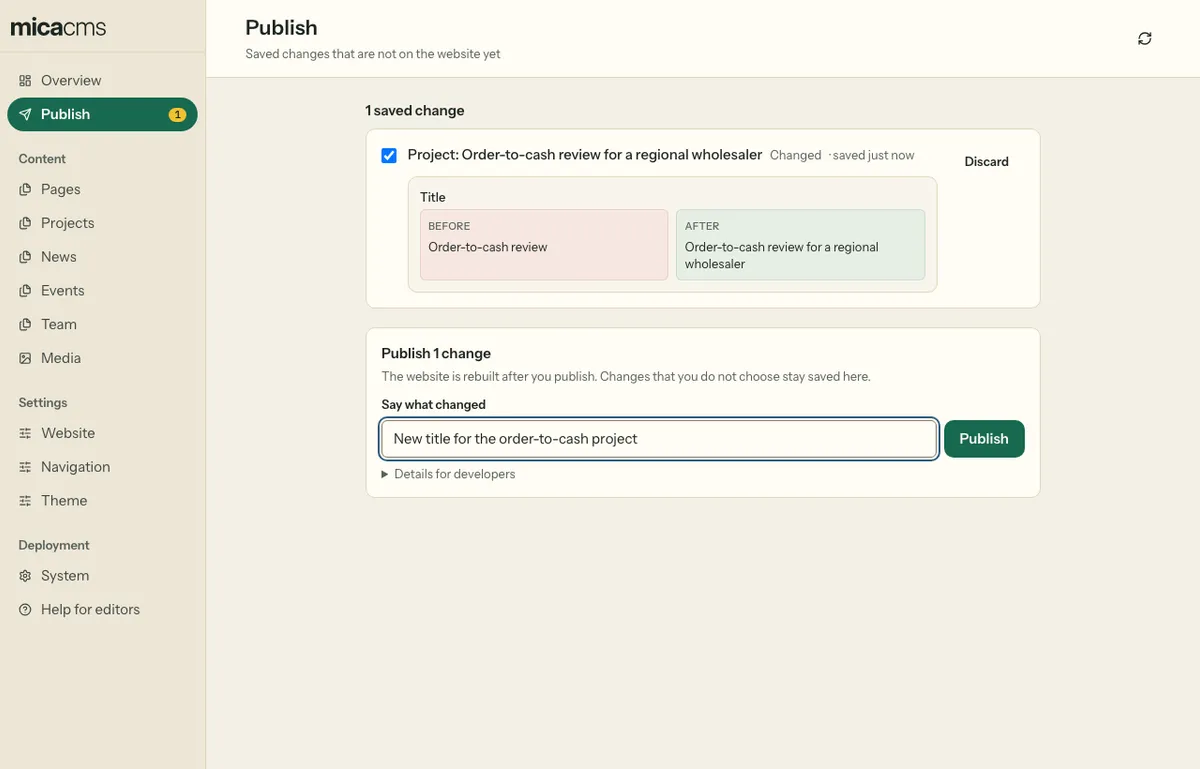
- Choose the changes to publish. The changes that you do not choose stay saved.
- Write a short note in Say what changed, for example "New opening hours".
- Select Publish.
Mica then says "Your website is being rebuilt now." When the website is ready depends on your hosting, usually a few minutes. If Mica says "Published in Mica, not on the website yet", it tries again every minute. You do not have to do anything.
Mica publishes a file together with the text that links to it. It does not let you publish the deletion of a file that a text still links to.
Discard a change
To remove a saved change, select Discard changes on the entry, or Discard next to the change on the Publish page. The entry goes back to the version on the website.
Mica discards, deletes and publishes only what you saw. When a colleague saved the entry or moved an entry in the list after you opened it, Mica stops and shows the newer version. Look at it, then try again.
Two saves at the same time
When a colleague saved the same entry while you were editing it, Mica shows "Somebody else saved this while you were editing", with their version and yours. Choose:
- Keep mine: your version replaces theirs. Mica notes who chose it.
- Use theirs: your changes go, and you see their version.
When the website changed after you saved, for example because a developer changed the same text, the Publish page shows it. Choose Keep my version or Use the website's version.
When your session ends
After some hours, you must sign in again. When that happens while you edit, Mica keeps your changes in the browser tab. Sign in again, and select Restore them.
Translations
When your website is multilingual, the top of the form has a Language switcher, for example DE, EN and FR. It stays in view while you scroll. The first language is the main language of the website.
- Select a language to see its texts. A field that is the same in each language, such as a date, shows in each language.
- The number on a language tells you how many texts of that language are empty while the main language has them. Point to the number to read it in words. A closed group or row shows the same number for the texts in it.
- A field that has a translation has a language button at the end of its label. Select it to see the field in the other languages. Select Use to put the text of another language into the field, and then change it.
- A yellow language button tells you that the field has no translation, and the website shows the text of another language. An empty text field shows that text in grey. A red language button with "!" tells you that the website shows nothing, for example for legal text.
- A required field needs a value in the main language only.
- A red "!" on a language tells you that one of its fields needs attention. A click on the problem above the form opens that language.
- When your developer has set it up, the preview and Open on website show the page in the language that you selected. When the preview shows a page in another language, the form changes to that language.
- Mica keeps your language when you open the next entry.
- To find what still needs a translation, look at the list of a collection: each entry shows its languages with missing translations, such as DE 2. Select Missing DE translations above the list to see only those entries. An entry that you open from there opens in German.
- The Overview lists, for each language, the lists and the pages with missing translations.
- All languages of an entry publish together.
Images and files
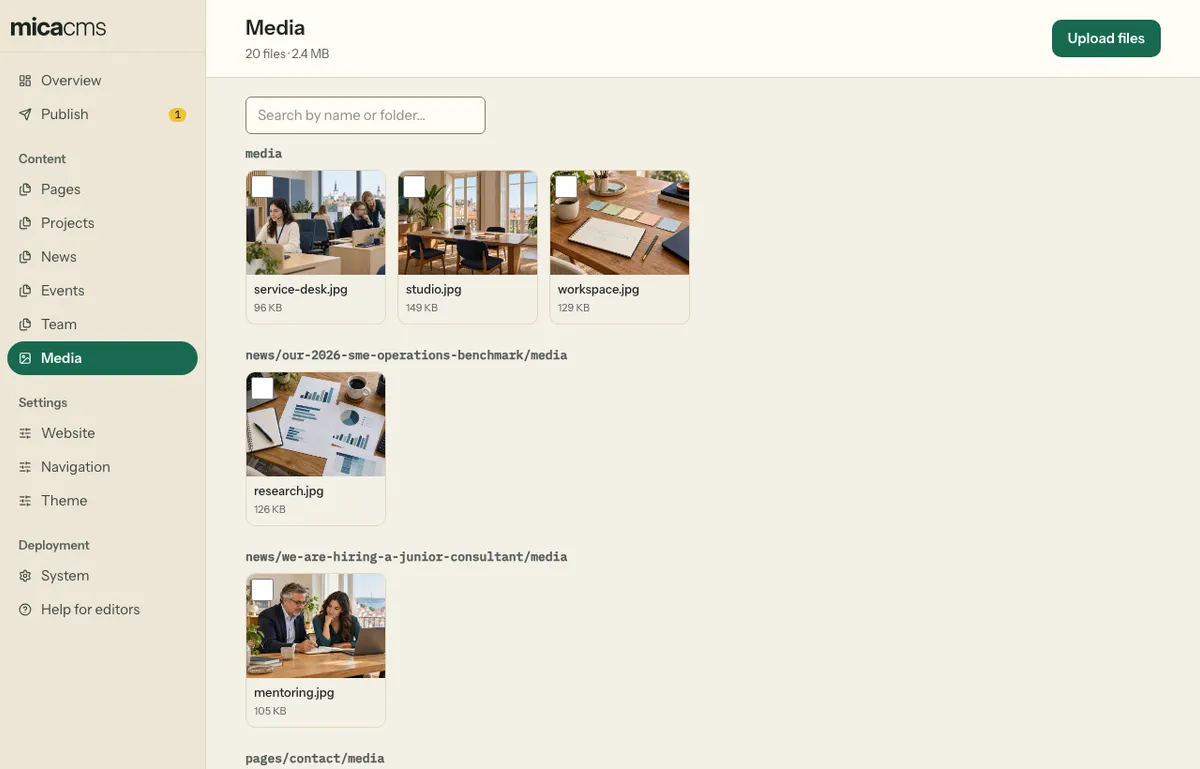
- Upload an image in its field, or on the Media page. You can also drop files on the field.
- To add many photos, drop them all at once. Mica shows the progress of each one. If one file fails, Mica goes on with the others, and you can try the failed files again.
- Some fields take other files than images, for example a GPX track, a KML or GeoJSON file, a ZIP file or a CSV file. The field says which types it takes, and Mica checks the type of each file.
- Write the alt text in the field, under the image. The alt text tells people who cannot see the image what it shows. It belongs to the place where the image is used, so the same image can have a different alt text on another page.
- On the Media page, you can show all files, only images, or only other files.
- You can delete a file on the Media page when no entry uses it. Mica tells you which entries use a file.
- You cannot rename a file. Upload it again with the new name, and change the entries that use it.
A place on a map
A field for coordinates can show a map under the two number fields.
- Select a place on the map, or drag the pin, to set the place.
- To zoom with the scroll wheel, hold Ctrl (Windows) or Cmd (Mac). Without it, the page scrolls as usual.
- Mica saves the zoom with the place. The website shows the same view.
- You can also type the numbers. If the map cannot load, the number fields still work.
Tables and images in the text
When a text field shows the Table and Image buttons, you can add them to the text.
- Table adds a table with a header row. In a table, a second row of buttons adds and deletes rows and columns. Each cell holds one line of text.
- Image opens the media library. Choose or upload an image, then write its alt text. To change the alt text later, select the image and select Image again.
- Create a new entry before you add an image to its text.
Some tables and images that a developer wrote stay read-only, for example an image inside a line of text. Mica then says why.
Order and links between entries
- In a list that has a handle (⋮⋮) at the start of each row, drag the rows into the order of the website. This is the same everywhere: the entries of a collection, a list of items in a form, the chosen entries of a field such as the team of a project, and the files of a media field. With the keyboard, press Space on the handle, move with the arrow keys, and press Space again. The arrows at the end of a row move it one step. For files, they move it one step earlier or later.
- A field that names other entries, such as the team of a project, finds an entry as you type its name. The same is true for a field that names an item of a long list, such as a list of places: type a part of its name.
- A field that names one entry, such as the author of an article, shows that entry. To choose another one, select Change, and type a part of its name. Remove empties the field.
Light or dark
The editor follows the light or dark mode of your computer. To choose one, select Light or Dark under Appearance at the end of the menu. System follows your computer again. Your browser keeps the choice.
Undo a published change
To undo a change that is on the website, change the entry back and publish again. To undo a whole publish, ask your developer: Git has each version of the website, and a developer can restore one. See Scope.
When something does not work
Open System in the menu, and select Copy report. Send the report to your developer. It contains no passwords and no email addresses. It also has the last warnings and errors of Mica, which the System page lists under Warnings and errors.