
Edit
Preview changes
How to see a change on the website: a link to its page, the live preview beside the editor, or a staging site.
3 min readA saved change is a draft in Mica. The website shows it after Publish, when the host builds the site again. There are three ways to see a change before or right after that.
Open the page on the website
Give a collection or a singleton the address of its page, and give Mica the address of the website:
news: collection({ label: "News", url: "/news/{id}", fields: { … } }),
about: singleton({ label: "About", url: "/about", fields: { … } }),
Set MICA_SITE_URL to the website's address, such as https://example.com. Then an entry shows "Open on website" at the top, and the Publish page links to each page that it published. A new entry gets the link after its first Publish, because its page does not exist before.
An address can also name other fields, such as /{activity}/{id}. Then an entry with a draft shows no "Open on website", because the draft can move its page. The Publish page links to such a page when the change's comparison has loaded.
On a multilingual site, an address can name {locale}, such as /{locale}/news/{id}. Then the link and the preview show the page in the language of the form. See Localization.
The link opens the published page. After a Publish, the host needs a few minutes to build it.
Preview with the local editor
Start the local editor with npx mica start --preview. It also starts the website's astro dev, and stops it when the editor stops. You can also run astro dev in another terminal. The dev server reads the saved drafts, so it shows a change about one second after you stop typing, before Publish. With a url in the model, the editor shows the page beside the form while the dev server runs, also for a new entry. The divider between them changes the width, and its button folds the page away. On a small screen, Preview opens the page in a new tab.
The local editor finds the dev server at the base path of the Astro config, on the port that the dev server listens on. When the port of the config is busy, Astro takes another one. mica start --preview reads the address that its astro dev prints, and micaPreview() in astro.config tells the editor the port of each astro dev. Without either, the editor uses the port of the config, 4321 by default. It then shows Preview not confirmed and a note above the page, because another website can answer there.
The top of the editor's menu shows the state of the preview: Preview live, Preview starting, Preview stopped or Preview off. While it is live, a click opens the preview in a new tab. When a form has a page and the preview starts or stopped, the place of the page says so, and why. The System page shows the last lines of the dev server that mica start --preview started.
Preview in the self-hosted Mica
The self-hosted Mica shows the same preview beside the form. The page comes from a preview container: the dev server of the website, which reads the drafts of Mica's data volume. The preview shows a draft about two seconds after you stop typing. Click to edit and the outline of changes that are not published work as in the local editor.
The preview has a host name of its own, such as preview.cms.example.com beside cms.example.com. When an editor opens an entry, Mica gives the editor's browser a pass for that address. The pass ends after ten minutes. The editor renews it when the person types or clicks, at most every five minutes. A tab that nobody uses does not renew it. The website never sees the cookies of Mica, and only the editor can frame the preview.
A change of a template shows in the preview after Mica's next sync of the branch, by default within a minute. Mica does not start, stop or build the preview. The setup is in Add the live preview.
Mica's preview image tells Mica its state on a port inside the network. So the menu shows Preview starting while it copies, installs or starts the website, Preview live when it answers, and Preview stopped with the reason when it failed. The System page shows the reason and its last lines. With an image of your own that does not tell its state, Mica sees only whether the preview answers: Preview starting for five minutes, then Preview stopped. Without MICA_PREVIEW_UPSTREAM, the menu shows Preview off.
Click a text to edit it
Add micaPreview() from @micacms/astro/preview to astro.config. Then start the editor with npx mica start --preview, or start the dev server with MICA_PREVIEW=1 astro dev. The preview then marks the fields of the page:
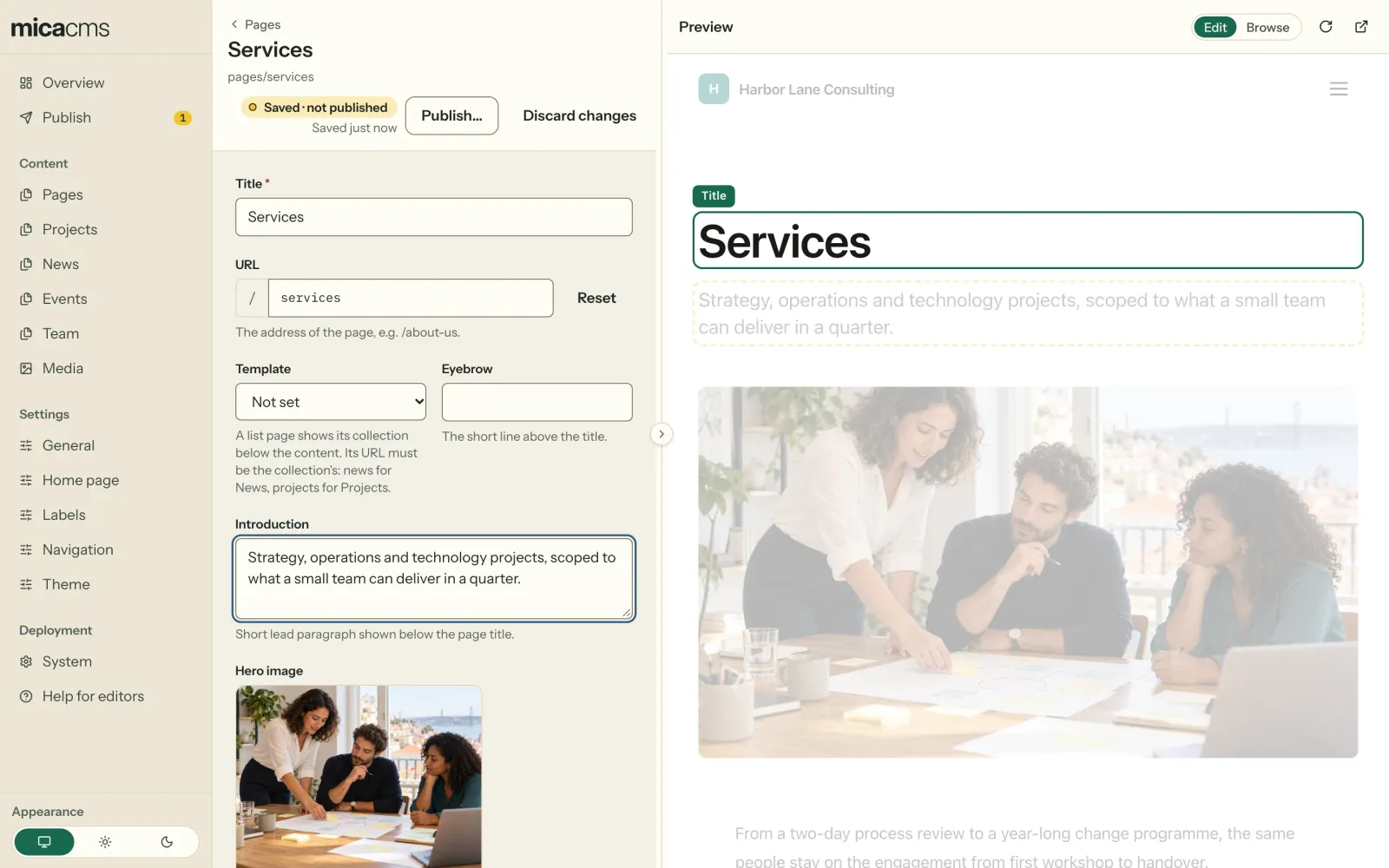
- In Edit mode, a click on a text opens its field. A text of another entry with a page opens that entry. A text without a page of its own, such as the navigation, opens its form over the current one. Alt-click follows a link.
- When you point at a field, it gets an outline, the rest of the page dims, and a label names the field.
- Some parts of a page show more than one field, such as a map with the place of an event and the word "Map" from the labels. A click opens the field of the entry that you edit. The other fields are buttons in the label. A link also offers its address there.
- A section or a list that has fields of its own, such as the layout of a section, offers them in its space around the texts and images inside it.
- A rich text has one outline. A click on a paragraph puts the cursor in that paragraph. When the cursor moves to another paragraph, the preview shows it.
- A click on an image opens its media field. In a gallery, the form goes to that image.
- A click on the name of a linked entry, such as the author of an article, goes to the field that links to it, such as Author. The label also has a button with the entry's name: it opens the entry over the current form, to edit it. In the field, Edit next to a chosen entry does the same.
- In Browse mode, the page acts as the website does. Back in Edit mode, the form of the page that the preview shows opens, in the language of that page.
- A field with changes that are not published has a yellow outline. In a rich text, each changed or new paragraph, heading, list or table has it. When the change has no such part, for example when you only deleted a paragraph, the whole text has it.
- When you click in a field of the form, the preview scrolls to it, and the rest of the page dims. For a field that links to other entries, it shows the linked entry.
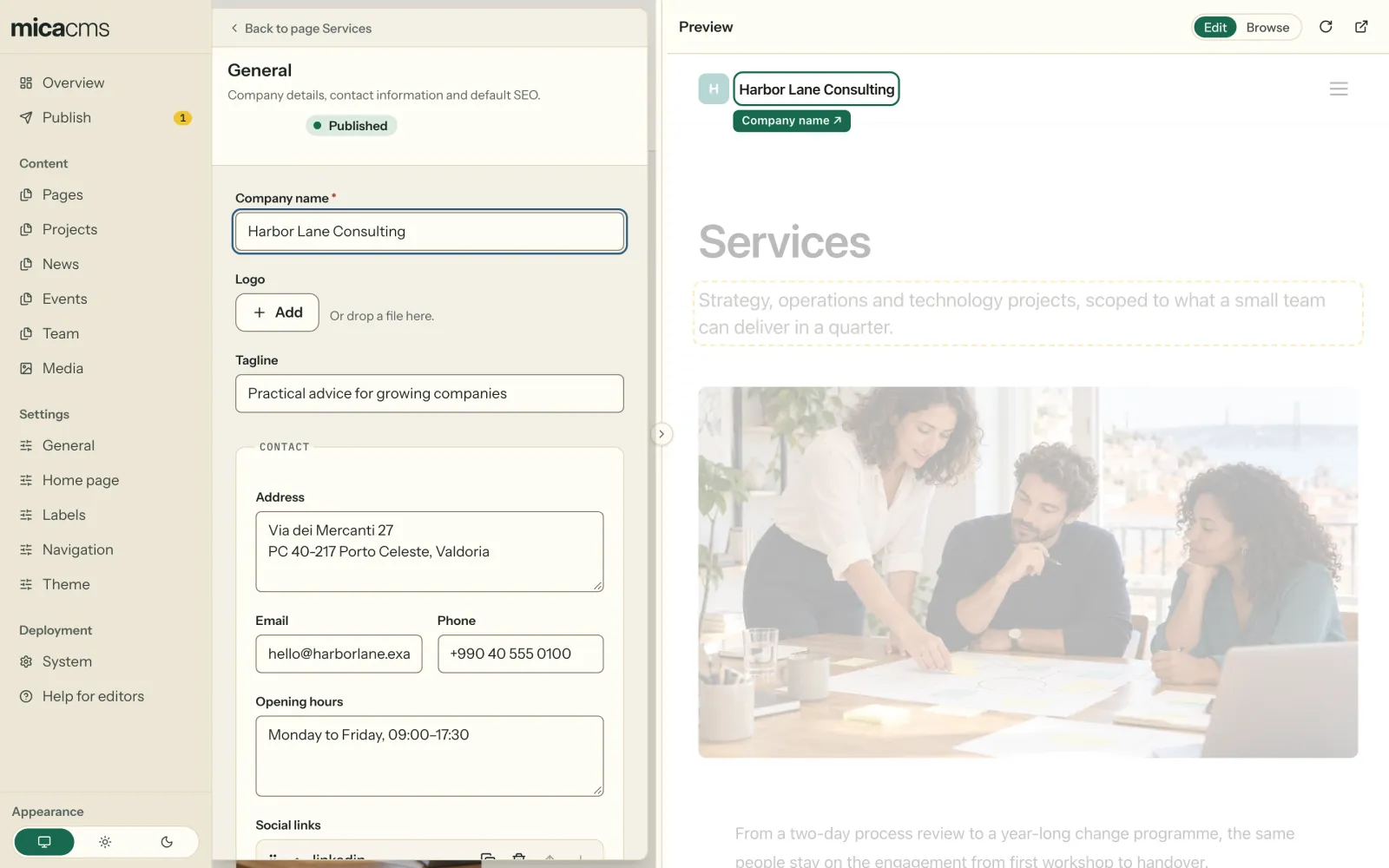
Texts, rich text and images with alt text carry invisible marks. Dates, numbers, options, tags, maps and other values do not: the preview finds them in the templates of the website instead, and gives each one to the entry around it. The templates do not change for this. See @micacms/astro for the setup.
Use a staging site
For a check before the real website changes, run a second Mica on a staging branch:
- Make a branch, such as
staging, and let the host build it as a second site. - Start a second self-hosted Mica with
MICA_REPOSITORY_BRANCH=staging. - Editors publish there and check the staging site.
- A developer merges
stagingintomainwhen the changes are ready.
The deploy previews of hosts such as Netlify, Vercel and Cloudflare Pages build branches and pull requests. They show published changes on a branch. They cannot show drafts, because a draft is not on any branch.